Reviewing and applying
The unsaved changes bar and its drawer, Discard, Review changes, and Apply in the review dialog.
Your edits stay in the editor until you apply them. Nothing reaches your server while you edit, and nothing is saved until you choose Apply in the review dialog.
The unsaved changes bar
As soon as you change a value, a bar appears at the bottom of the editor. It shows how many unsaved changes you have, for example 3 unsaved changes, and holds the two actions Discard and Review changes.
- The change count opens a drawer that lists every pending change in a table: Setting, Before, After and Note. List entries are marked Added, Removed or Reordered. The drawer also says how many pending changes take effect only after a server restart, and reminds you that Warnings do not block applying.
- When some values break the plugin's limits, the bar shows a count of problems. It opens Fix before applying, a list that jumps to each setting. Warnings are counted too, but never block.
- Discard asks Discard your changes? and, after Discard changes, restores the values loaded from the server. Keep editing closes the question.
While the server is offline, Review changes is disabled: The server is offline. Reconnect it to review and apply. You can keep editing settings that are already loaded.
The review dialog
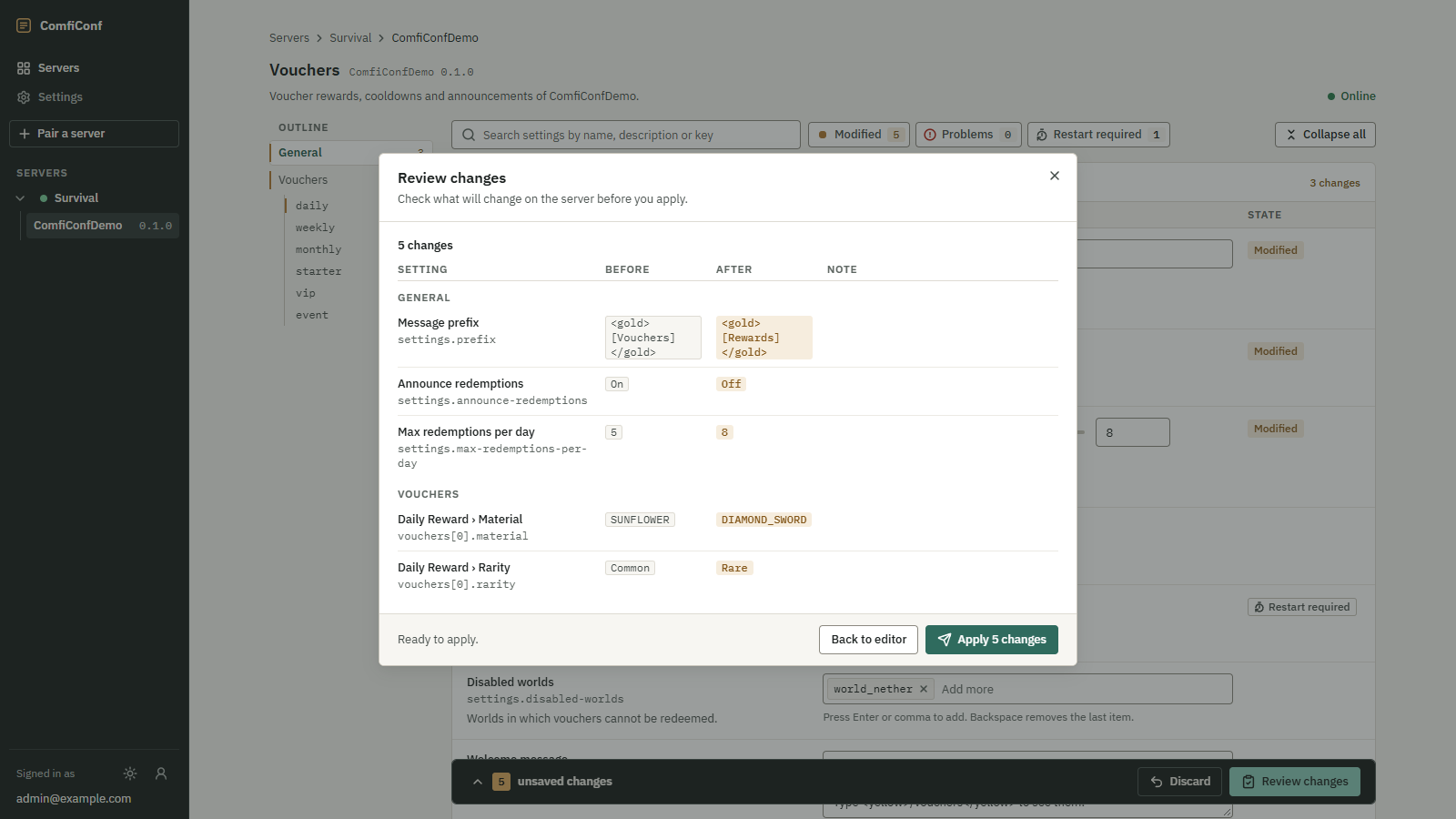
Review changes sends your values to the plugin for checking, but does not save them. The dialog, titled Review changes, says Check what will change on the server before you apply. and shows, while the plugin checks, Checking your changes with the plugin…
 Opens the full-size image.
The review lists, from top to bottom:
- Problems to fix before applying, if any, such as 2 problems to fix before applying. Choose a problem to jump to its setting.
- Warnings from the plugin. They are shown, but never block applying.
- Restart notes, such as 1 change needs a server restart: these changes are saved when you apply, and take effect after the Minecraft server restarts.
- The changes, grouped by section, each with its value before and after. Secret values are never shown.
The footer tells you whether you can apply:
| Footer text | Meaning |
|---|---|
| Ready to apply. | Choose Apply to save and activate the changes. |
| Fix the problems above to apply. | At least one value has a problem. Go Back to editor and fix it. |
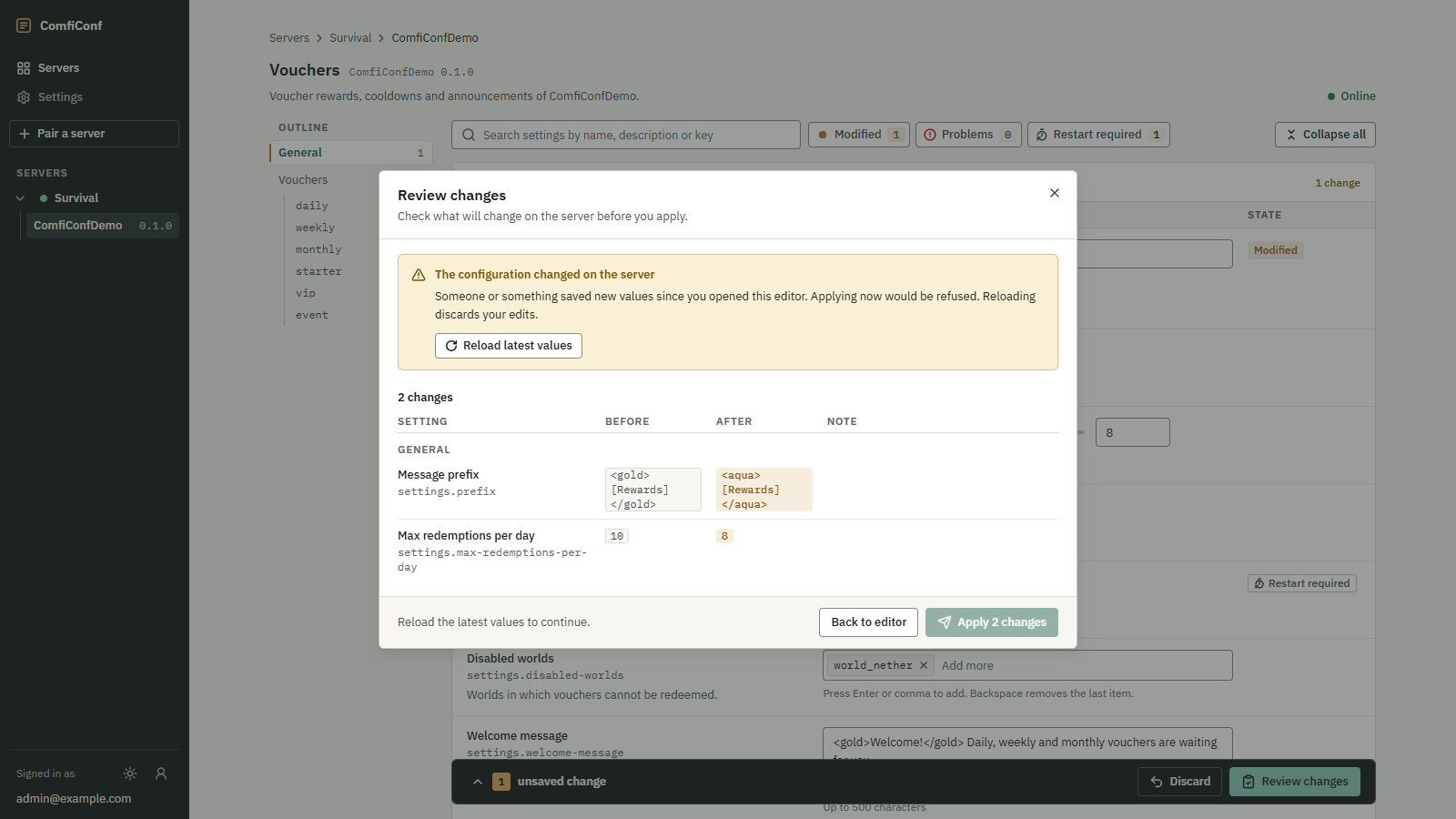
| Reload the latest values to continue. | The settings changed on the server since you opened the editor. See below. |
| There is nothing to apply. | Your values match what is stored on the server. |
If the plugin could not be asked, the dialog says Your changes could not be checked and offers Try again. Nothing was sent to the plugin then.
Applying
The apply button names the number of changes, for example Apply 3 changes. While the plugin saves and activates them, the dialog shows Applying your changes… and cannot be closed. The dialog then turns into Apply result and tells you What happened on the server.: see Apply outcomes.
Every apply is recorded under Recent activity on the server page, with its result.
When the settings changed on the server
If someone or something saves new values on the server while you edit, for example a hand edit of the plugin's file, another plugin, or an apply from another browser tab, ComfiConf will not overwrite them:
- In the editor, a Changed elsewhere notice appears above your settings: This configuration was changed on the server while you were editing. Choose Reload latest values to load the new values (this discards your edits), or Keep my edits to dismiss the notice. Applying stays refused until you reload.
- In the review dialog, a warning reads The configuration changed on the server, with the same Reload latest values button.
If you had no unsaved edits, the editor loads the new values on its own and tells you Loaded the latest values.
 Opens the full-size image.