Lists and entries
Add, duplicate, remove and reorder list entries, edit them inline in the entries table, and bulk edit many at once.
Many plugins keep repeated items in a list: vouchers, kits, arenas, ranks. The plugin names its entries, so the editor speaks the plugin's language, for example Add voucher instead of a generic button.
 Opens the full-size image.
The entries table
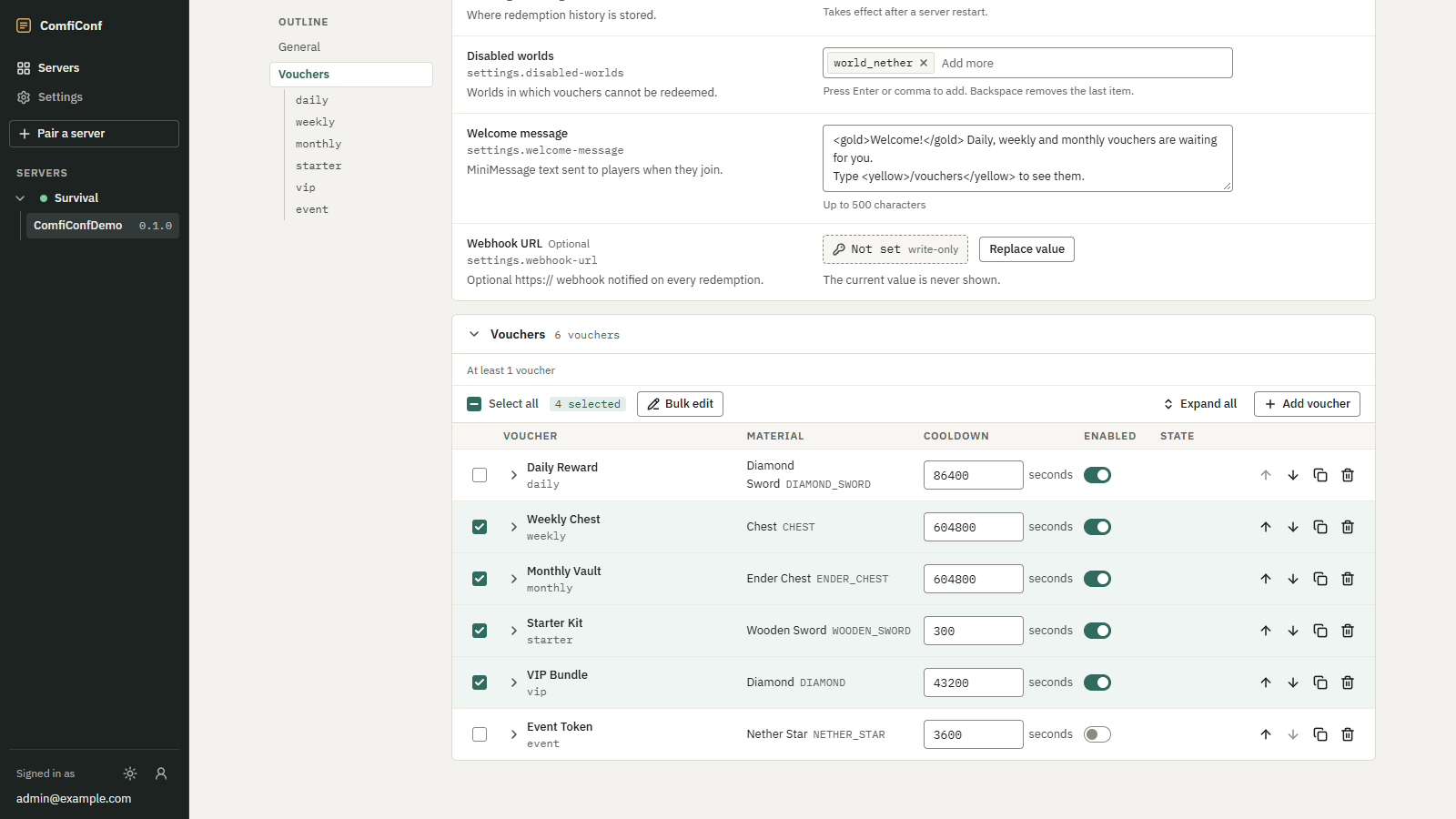
Each list is a table with one row per entry. The first column shows the entry's title and its key in mono, for
example Daily Reward and daily. Up to three more columns show important settings of each entry, and the
State column shows badges such as New,
Modified or 2 problems.
Toggles, dropdowns and number fields in the table can be edited right there, without opening the entry. The previous value appears after was, as in any other row.
Open an entry with the arrow at the start of its row to see and edit all of its settings. In a list of more than three entries, the entries start closed; Expand all and Collapse all above the table open or close every entry.
Adding, duplicating, removing and reordering
| Action | How |
|---|---|
| Add | Add followed by the entry name, such as Add voucher, in the list's toolbar. The new entry goes at the end. The button is disabled while the list is full. |
| Duplicate | The duplicate button in the entry's row. The copy appears right after the original, with a key of its own based on the original's. |
| Remove | The remove button in the entry's row. A notice with Undo brings the entry back. |
| Reorder | Move up (Alt+Up) and Move down (Alt+Down), only in lists whose order matters. |
Every entry needs a unique key when the plugin uses one, such as a voucher id. If two entries share a key, the editor reports it on the duplicate, for example Another voucher already uses followed by the key. Lists can also have a minimum or maximum number of entries, such as At least 1 voucher.
Bulk editing
Bulk editing sets one setting to the same value on many entries, for example to turn off several vouchers at once.
Select the entries
Tick the checkbox of each entry, or use Select all. The toolbar shows how many are selected.
Open Bulk edit
Choose Bulk edit. The dialog is titled after the selection, for example Bulk edit 4 vouchers.
Choose the setting and its value
Pick the Setting, then enter the new value. The dialog tells you how many of the selected entries will change.
Apply it to the entries
Choose Apply to 4 vouchers (with your own count and entry name). The values change in the editor only: Nothing is sent to the server until you review and apply.
Bulk editing offers settings with a single value. An entry's key, read-only settings and secret settings are not offered.