Editing values
Each kind of control in the editor, the material picker, and settings whose value is secret.
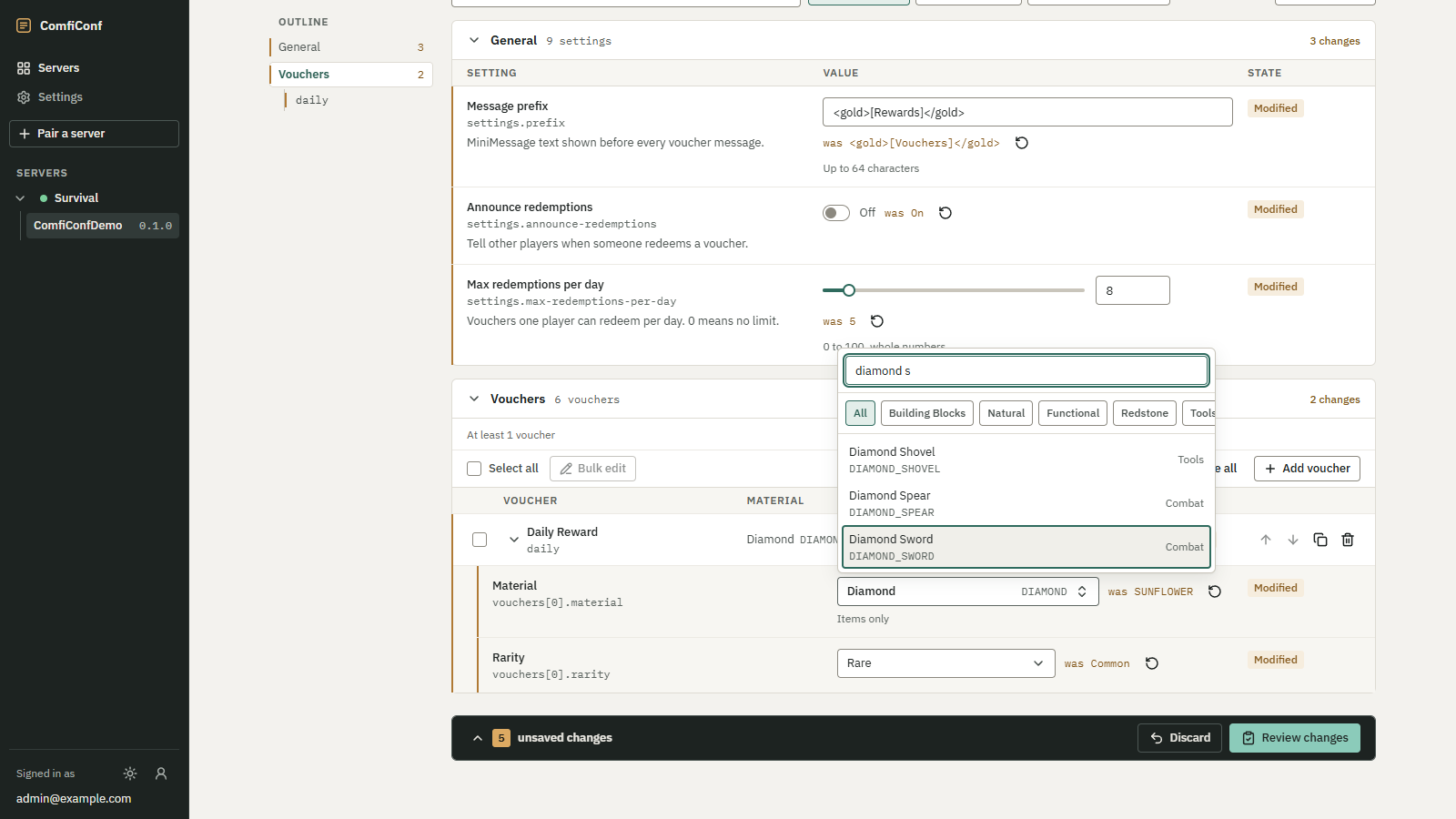
The plugin decides which settings you can edit and which control each one gets. Every control checks your input as you type, against the limits the plugin declared, and the plugin checks the values again when you review.
 Opens the full-size image.
What a setting row shows
- The label, and Optional next to it when the setting may be left empty.
- The key path in mono, such as
settings.max-redemptions-per-day. It matches the plugin's own file. - The plugin's description and a hint about the limits, such as 0 to 100, whole numbers or Up to 64 characters.
- Badges on the right: Modified, Error, Warning, Restart required and Read only.
When you change a value, the row gets a brass bar and the Modified badge, and the previous value appears after was. The undo button next to it, Undo changes to this setting, puts the value back. Nothing is sent to your server until you review and apply.
Settings with Restart required are saved when you apply, but take effect only after the Minecraft server restarts. Their hint says Takes effect after a server restart.
Controls
| Control | Used for | How it works |
|---|---|---|
| Text field | Short text | Shows the plugin's placeholder while empty. Clearing an optional field leaves it unset. |
| Text area | Longer text, such as messages | As a text field, over several lines. |
| Toggle | On or off | Reads On or Off. |
| Number field | Whole numbers and decimals | ↑ and ↓ step the value; with Shift they step ten times as far. A comma works as the decimal point. A unit, such as seconds, appears after the field. |
| Slider | Numbers with a fixed range | Appears next to the number field when the plugin asks for one. |
| Dropdown | One choice from a list | Shows Choose an option while empty. Optional settings offer Not set. |
| Choice buttons | Several choices from a short list | Up to 12 choices appear as buttons you switch on and off. |
| Choice list | Several choices from a long list | Choose opens a searchable list, with Search choices. Selected items appear as chips you can remove. |
| Tag list | Free text items, such as world names | Type an item and press Enter or a comma. Backspace removes the last item. Pasting splits text on commas and new lines. |
| Material picker | A block or item | See below. |
A number that is not a number shows Enter a number., or Enter a whole number. for whole numbers. Values outside the limits show messages such as Must be at most 100. A dropdown value that is not one of the choices any more is shown as Not one of the choices.
The material picker
Settings that name a block or an item, such as the icon of a voucher, use the material picker. The list of materials comes from your server, so it matches its Minecraft version.
- Choose Choose a material, then type into Search by name or key, for example
diamond sorDIAMOND_SWORD. - Narrow the list with the category buttons: All, Building Blocks, Natural, Functional, Redstone, Tools, Combat, Food, Ingredients, Spawn Eggs and Items.
- The picker shows up to 150 results at a time; refine the search to see others.
- Some settings accept only items or only placeable blocks. Their hint reads Items only or Placeable blocks only.
- Clear selection empties an optional setting.
If the material list cannot be loaded, you can still type a material name and choose it. A stored value that is not a material on your server, for example a name typed into the plugin's file by hand, is marked so you can choose another one.
Secret values
Plugins mark some settings as sensitive, such as database passwords, API tokens or webhook addresses. Their values never leave your server, so the editor shows only whether a value exists: Set or Not set.
- A sensitive setting without the write-only tag is managed on the server only. The editor says Managed on the server. It cannot be viewed or changed here.
- A write-only setting can be replaced. Choose Replace value, type into New value, and use Show value if you want to check what you typed. Keep current value cancels. The editor reminds you that The current value is never shown.
When you apply, the new value replaces the stored one. In the review and in the server's activity, a change to a secret appears without its old or new value.
Read-only settings
A setting with the Read only badge is shown for reference. The plugin does not accept changes to it from ComfiConf.