Your first edit
Find a setting, change it, review the change and apply it, from start to finish.
This walk-through changes one setting of a plugin with ComfiConf support. The examples use the ComfiConfDemo plugin and its Vouchers settings; any supported plugin works the same way.
Open your server
On Your servers, choose the server. Its page lists the plugins that share settings with ComfiConf under Plugins.
Open the plugin's settings
Choose Open next to the plugin, or the name of one of its settings pages. The editor opens with the values that are on the server right now.
Find the setting
Type part of the name, description or key into Search settings by name, description or key, or use the outline to jump to a section. See Finding settings.
Change the value
Edit the value. The row is marked Modified and shows the previous value after was, and the unsaved changes bar appears at the bottom of the editor. Nothing has been sent to your server yet.
Review the change
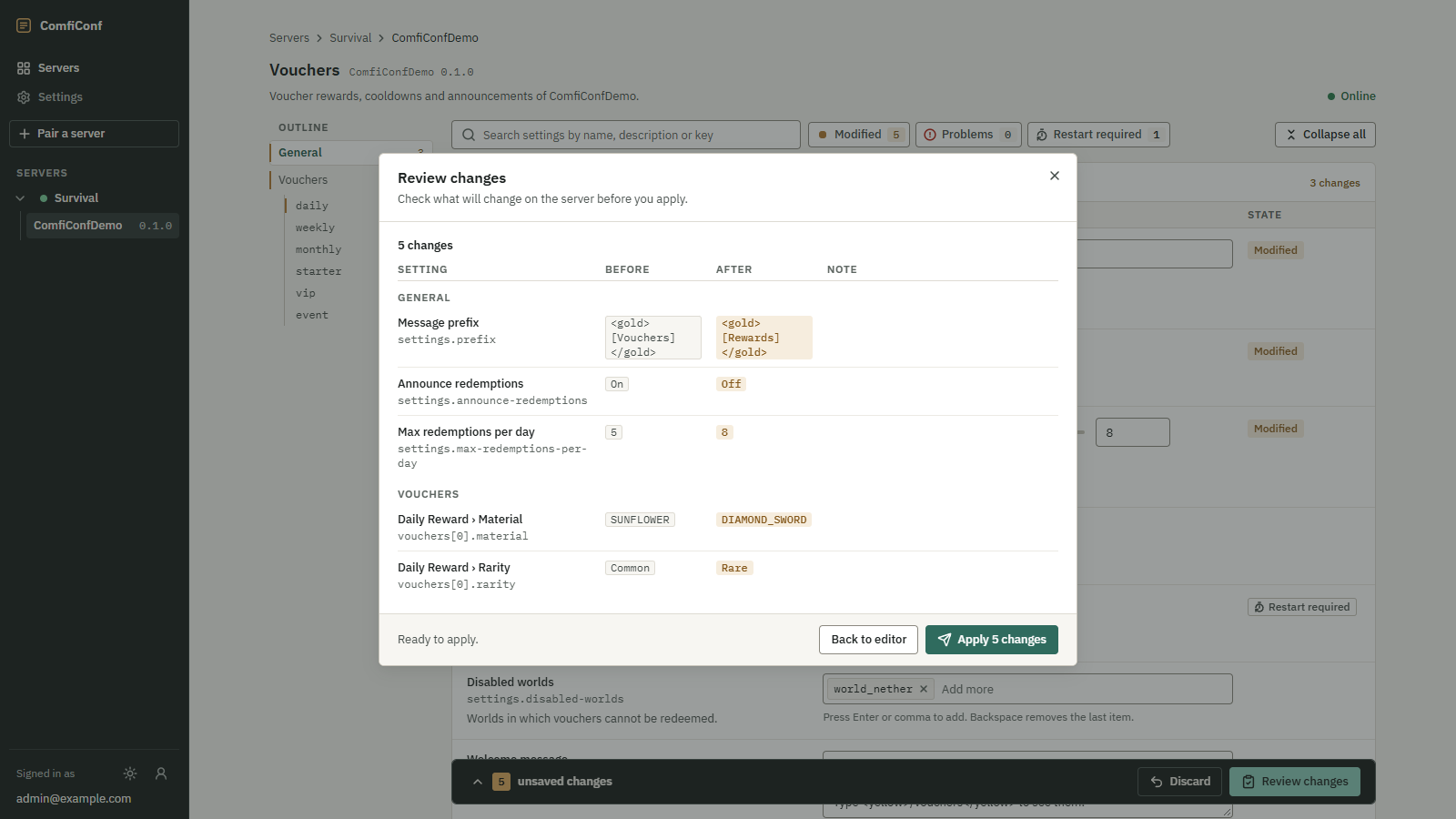
Choose Review changes. The plugin checks your values, and the Review changes dialog lists each change with its value before and after, together with any problems or warnings.
Apply it
Choose Apply 1 change. The plugin saves and activates the value, and the dialog shows the outcome, for example Changes applied and active. Choose Done.
 Opens the full-size image.
The change also appears under Recent activity on the server page, with its result.
If something else happens
- Saved. A restart is needed: the value is saved, and some changes take effect after the next server restart.
- The plugin rejected these changes: nothing was saved; the problems are marked on the fields.
- The configuration changed while you were editing: someone or something changed the settings on the server after you opened the editor, so nothing was applied.
Apply outcomes explains every result and what to do next.